
How to Fix Windows Update Errors in 2026
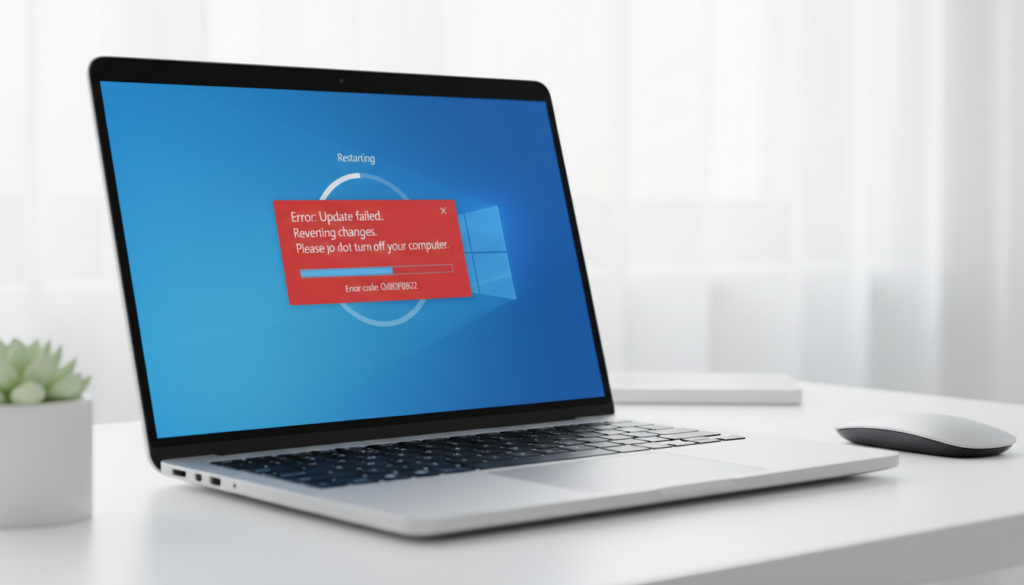
Windows updates are essential for security, performance improvements, and system stability. However, many users experience frustrating problems such as updates getting stuck, error codes appearing, or installations failing unexpectedly.
If you are dealing with a Windows update error, don’t panic. Most update problems can be fixed without advanced technical skills. In this complete guide, I’ll walk you through practical, safe, and effective solutions to fix Windows update errors step by step.
Why Windows Update Errors Happen
Before fixing the issue, it’s important to understand why Windows update problems occur.
Common causes include:
- Corrupted system files
- Interrupted downloads
- Low storage space
- Internet connection instability
- Conflicting software
- Damaged update cache
Understanding the root cause helps you choose the correct solution.
1. Restart Your Computer First
It may sound simple, but restarting your computer can resolve many temporary update issues.
Sometimes background processes interfere with installation. A clean restart resets system services and allows Windows to attempt the update again properly.
After restarting:
- Go to Settings
- Click Windows Update
- Try installing the update again
If the issue persists, continue with the next steps.
2. Check Your Internet Connection
Windows updates require a stable internet connection.
Make sure:
- You are connected to Wi-Fi or Ethernet
- Your connection is stable
- No large downloads are running in the background
If needed, restart your router and reconnect before retrying the update.
3. Free Up Storage Space
Insufficient storage is one of the most common reasons for Windows update failures.
To check storage:
- Open Settings
- Go to System
- Click Storage
Make sure you have at least 20GB of free space for major updates.
Delete:
- Temporary files
- Large unused downloads
- Old applications
Freeing space often resolves update installation errors immediately.
4. Run the Windows Update Troubleshooter
Windows includes a built-in tool designed specifically to fix update problems.
To run it:
- Open Settings
- Go to System
- Select Troubleshoot
- Click Other troubleshooters
- Run Windows Update Troubleshooter
The system will automatically detect and repair common update issues.
This method works surprisingly well in many cases.
5. Clear Windows Update Cache
If update files become corrupted, clearing the update cache can fix the issue.
Step 1: Stop Update Services
- Press Windows + R
- Type: services.msc
- Find “Windows Update”
- Right-click → Stop
Step 2: Delete Cache Files
- Open File Explorer
- Navigate to:
C:\Windows\SoftwareDistribution - Delete all files inside the folder
Step 3: Restart the Service
Go back to Services
Right-click Windows Update → Start
Now try updating again.
This solution fixes many “stuck update” problems.
6. Run System File Checker (SFC)
Corrupted system files can block Windows updates.
To scan and repair:
- Open Command Prompt as Administrator
- Type:
sfc /scannow - Press Enter
The system will scan for damaged files and repair them automatically.
This process may take 10–20 minutes.
7. Use DISM Tool (Advanced Fix)
If SFC doesn’t fix the issue, use DISM.
Open Command Prompt as Administrator and type:
DISM /Online /Cleanup-Image /RestoreHealth
Press Enter and wait for completion.
DISM repairs deeper system corruption that may prevent updates from installing properly.
8. Install Updates Manually
If automatic updates fail repeatedly, you can install them manually.
- Go to the Microsoft Update Catalog website
- Search for the update code (e.g., KB number)
- Download the correct version
- Install it manually
This method bypasses some automatic update errors.
9. Reset Windows Update Components
If none of the above methods work, resetting Windows update components can fully restore update functionality.
This process involves:
- Stopping update services
- Renaming system folders
- Restarting services
Although slightly advanced, it is highly effective for persistent errors.
10. Check for Malware or Security Conflicts
Some third-party antivirus programs may interfere with updates.
Temporarily disable antivirus software and try updating again.
Also run a malware scan to ensure no malicious software is blocking system processes.
11. Perform a Clean Boot
A clean boot starts Windows with minimal background services.
This helps determine whether third-party applications are causing update conflicts.
To perform a clean boot:
- Press Windows + R
- Type: msconfig
- Disable non-Microsoft services
- Restart your PC
Try updating again in clean boot mode.
Common Windows Update Error Codes
Here are some common error codes users encounter:
- 0x80070002
- 0x800f081f
- 0x80070057
- 0x80073712
Most of these errors are related to corrupted files or incomplete downloads and can be fixed using SFC, DISM, or clearing the update cache.
Preventing Future Update Problems
To avoid update errors in the future:
- Keep at least 20% free storage
- Avoid interrupting updates
- Maintain stable internet
- Restart your PC regularly
- Keep drivers updated
Regular maintenance significantly reduces update issues.
Final Thoughts
Windows update errors can be frustrating, especially when they prevent important security patches from installing. However, most problems can be fixed with simple troubleshooting steps.
Start with the basic methods such as restarting your computer and running the troubleshooter. If needed, move on to clearing the update cache or using system repair tools like SFC and DISM.
With patience and the right approach, you can restore your update system and keep your computer secure and up to date.









Post Comment