How to Clean Laptop Storage and Free Up Space (Step-by-Step Guide)
Is your laptop constantly warning you about low storage space? A full hard drive can slow down performance, prevent updates, and make everyday tasks frustrating.
The good news is that cleaning your laptop storage doesn’t require technical skills. In this guide, I’ll walk you through practical and safe steps to free up space and improve your laptop’s speed.
1. Check What Is Taking Up Space
Before deleting anything, identify large files and apps.
On Windows:
- Go to Settings
- Click System
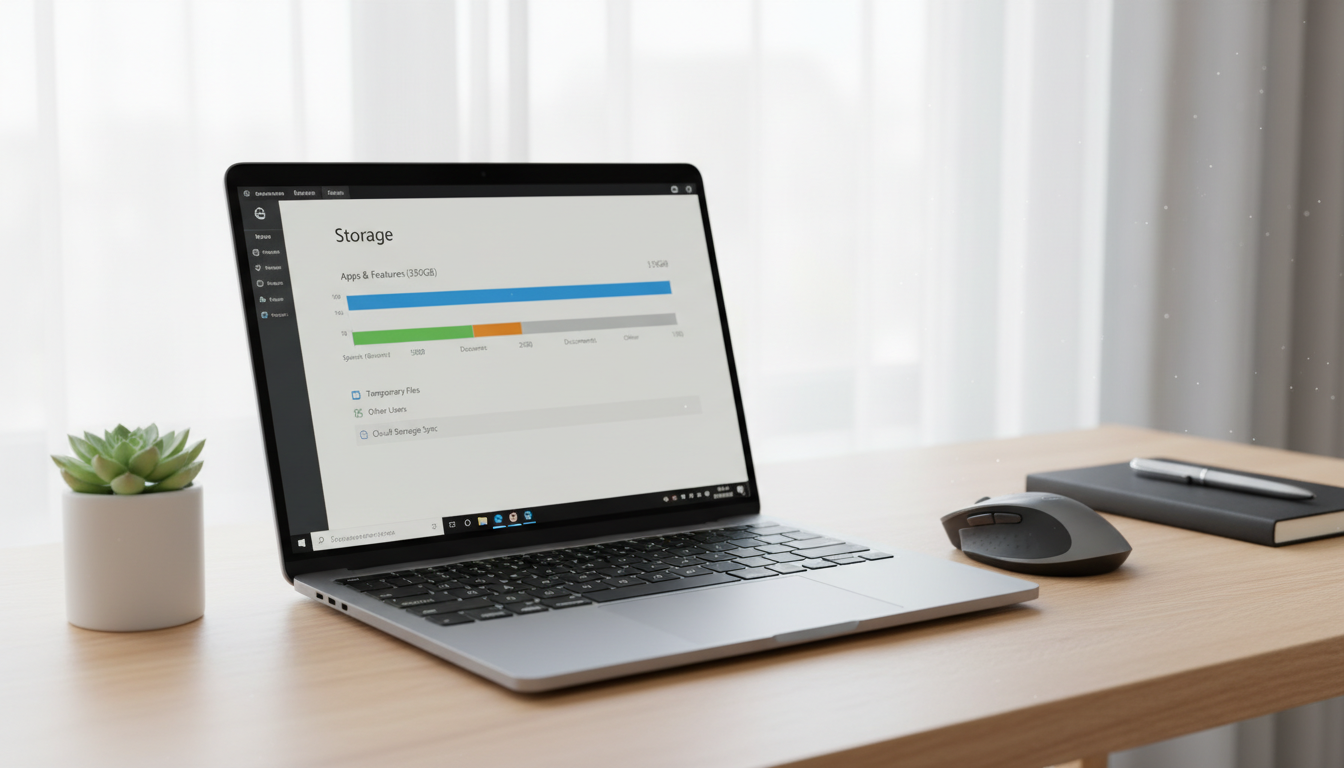
- Select Storage
Understanding the problem helps you avoid deleting important files.
You’ll see a breakdown of what’s using space, such as apps, temporary files, and documents.
2. Delete Temporary Files
Temporary files build up over time and are usually safe to remove.
On Windows:
- Search for “Disk Cleanup”
- Select your main drive
- Check “Temporary Files”
- Click Clean
This alone can free up several gigabytes.
3. Uninstall Programs You Don’t Use
Old software often takes up more space than you think.
- Go to Control Panel
- Click Programs
- Uninstall programs you no longer need
Be careful not to remove system-related software.
4. Move Files to Cloud Storage
Photos and videos consume a lot of storage.
Consider:
- Moving them to external storage
- Uploading them to secure cloud services
This keeps your laptop lighter and more organized.
5. Empty the Recycle Bin
Many users forget this step. Deleted files still take space until permanently removed.
Right-click Recycle Bin → Empty.
Simple but effective.
6. Enable Storage Sense (Windows)
Storage Sense automatically removes unnecessary files.
- Go to Settings
- Click Storage
- Turn on Storage Sense
This helps maintain free space without manual cleanup.
7. Upgrade Your Storage (Optional)
If your storage constantly fills up, upgrading to a larger SSD can significantly improve both space and performance.
It’s one of the best long-term solutions.
Final Thoughts
Cleaning laptop storage is one of the easiest ways to improve performance and avoid system errors.
Start with temporary files and unused programs. If needed, move large files to external storage or consider upgrading your drive.
Regular maintenance keeps your laptop running smoothly for years.







Post Comment